Showing posts with label photoshop brushes. Show all posts

Monday, October 15, 2012

Photoshop - Create your own custom brushes

Did you know you can create your own custom brush in Photoshop? This brush could be of any shape or even a photo of something allowing you to let your creative juices flow.
How about creating a brush with your logo or signature? Then, with just a click of the mouse you could digitally sign any of your copyrighted work or even add your logo to anything you've created.
Here are the steps to do this.
  1. Open a shape or image that you want to become a brush (larger images better so that your image doesn't pixelate when increasing your brush size. You can always make your brush size smaller)
  2. Edit > Define Brush Set
  3. Give your brush a descriptive name
  4. Open your brush pallet then scroll to the bottom of the brush selections
  5. Your new custom brush will be the last option available
It's that simple!
Want to see how I made an awesome brush and signature brush? Check out my video below.
Enjoy!
http://screencast.com/t/FMB6Y7U8j3b


Wednesday, October 21, 2009

Photoshop Art History Brush Tutorial

I've used the Artistic filters in Photoshop to create painting effects. However, the Art History Brush allows me to control what part of the painting I want to restore and allows for almost unlimited special effects.
The art history brush tool lets you paint with stylized strokes, using the source data from a specified history state or snapshot. By experimenting with different paint style, size, and tolerance options, you can simulate the texture of painting with different colors and artistic styles.

Like the history brush, the art history brush uses a specified history state as the source data. The history brush, however, paints by recreating the specified source data, while the art history brush uses that data along with the options you set to create different colors and artistic styles.

Open the photo that you want to make look like a painting
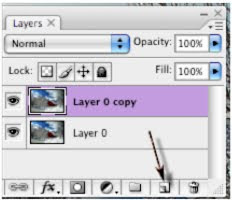
Duplicate the background layer by dragging the layer to the new layer icon (always work on a copy of an image)

Change foreground color to White

Edit – Fill – Normal – Foreground color (Fills the new layer with white)

Select the Art History Brush (has a curl around brush) and try various brush styles and sizes.

Depending on the resolution of your image here is my results when using the option palette setting “Tight Short” with a solid brush size of 9.


Want some real fun? Try various brush shapes when using the Art History Brush. Here I used a snowflake shaped brush and changed the size of the brush as I painted back in time.
Now there's an afternoon of fun with Photoshop. Enjoy!


Monday, October 05, 2009

Fabulous Photoshop Tip in less than 1 minute

Change the brush size on the fly
Want to change the size of your brush with out having to go up to the Option Palette? Just use the right and left bracket keys to quickly change the size of your brush.
The bracket keys also work on the pencil, eraser tools, clone stamp and a few others.
Want to change the softness of your brush? Hold down the shift and left bracket to soften the edges.
Bonus tip: Always use a soft edged brush when working in Photoshop to get better results.